Save your workers and their pay, plan their shifts, write down the hours they work, and make a payslip each pay period. Everything is under Staff and pay, in the circle with your initials.
Before your first payday
In Settings, open Payroll. Pick how often you pay (weekly, every two weeks or monthly) and your pay day. Here you also set the extra you pay on Saturdays, Sundays and public holidays, and the pension rate.
Add a worker
- Open Staff and pay and click Add employee.
- Who: first name, last name, phone and email.
- Job: their role, whether they work full-time, part-time or casual, and the start date.
- Pay: how they're paid (by the hour, day, week, fortnight or month) and the amount. Pick a tax bracket if you use them. Not sure? Ask your accountant.
- Address, tax ID and pension can wait, under More details. Click Add employee.
Plan the week with the rota
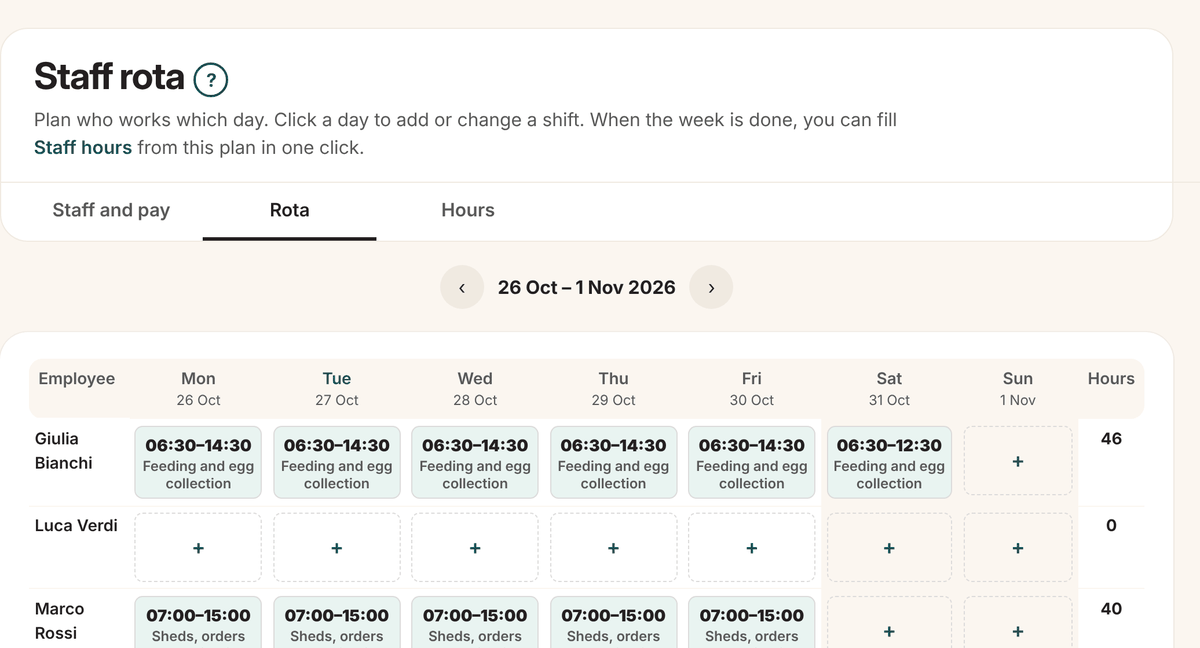
- Click the Rota tab.
- Click a day next to a person's name, choose when the shift starts and ends, and type the job if you like, for example "Feeding and egg collection".
- Most weeks the same? Go to the new week and click Copy last week's shifts. Days you've already planned don't change.
Print the rota gives you a page to pin up in the shed. Who's working today also shows on Today on the farm.
Write down the hours
- Click the Hours tab.
- Type the hours each person worked under each day. 7.5 is seven and a half hours. Leave the box empty for a day off.
- Worked as planned? Click Fill empty days from the rota and fix only the days that were different.
- Click Save hours.
Make a payslip
- Open the worker and click Make a payslip, or click Make payslip next to their name on the Hours page.
- Check the start of the pay period. The hours from the Hours page are already filled in.
- Tick any public holidays they worked, and click Save payslip.
The payslip page shows the take-home pay, and has Print payslip and Mark as paid.
The pay counts in your staff costs, the Budget's Staff wages line and the Staff costs report. On the batches, each day's pay is shared between the batches on the farm that day.